Import the lamp
- Download the original GLB, then open the editor.
- In File, enable Import as group. Choose File → Import Files and select the downloaded GLB.
Bring it into view
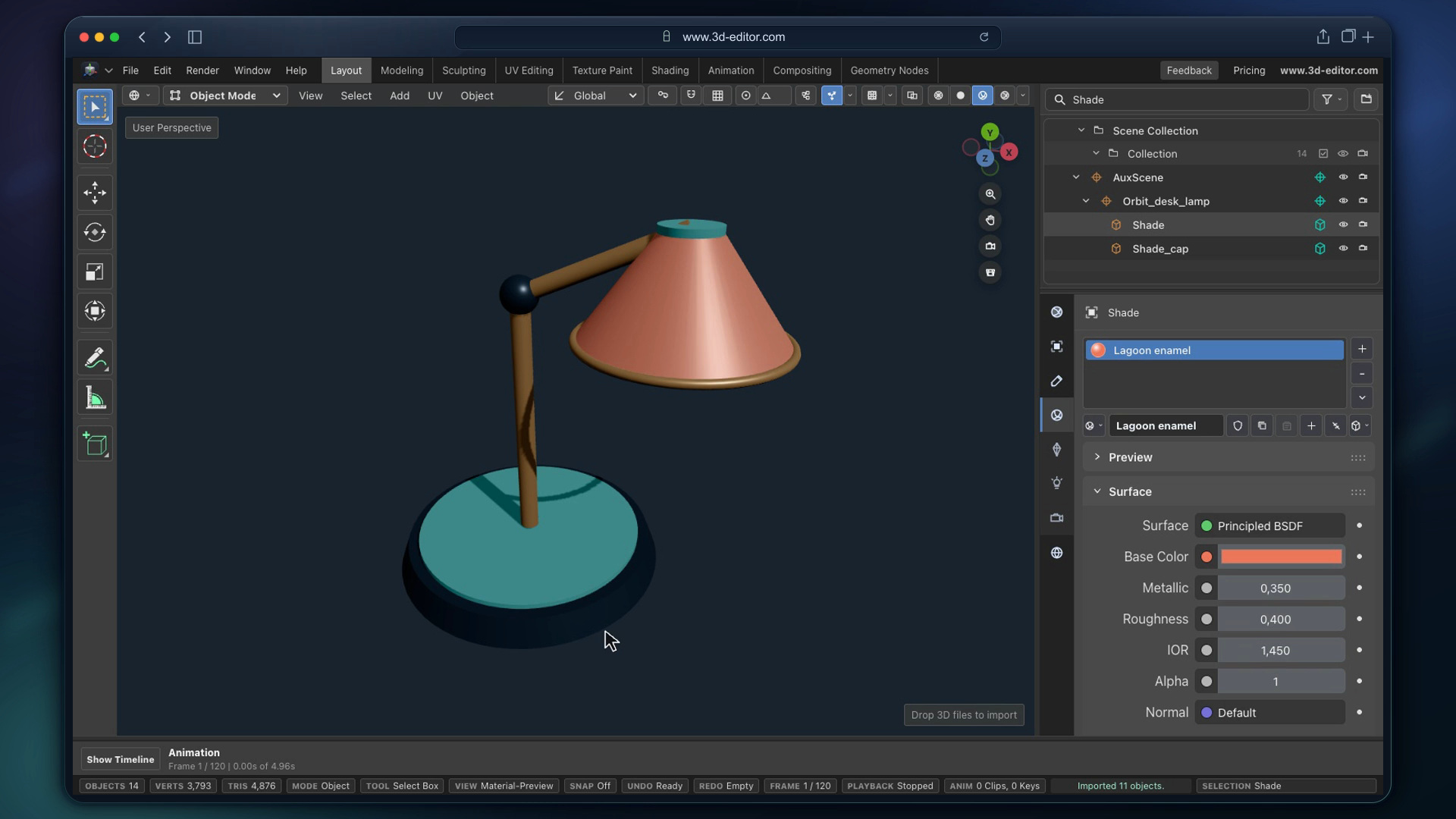
- Select Orbit_desk_lamp in the Outliner (top-right object list), then choose View → Frame Selected.
- Use the eye icons to hide the default Cube and Camera. Keep the light enabled.
Select the shade
- Switch to Material Preview. Search the Outliner for Shade and select Shade—not Shade_cap.
- Open the Material tab in the right-hand Properties panel.
Choose a color
- Click Base Color, enter #EC7659, and confirm. Only the shade turns coral.
Soften the finish
- Set Roughness to 0.40. Lower values look glossier; higher values look more matte.
Move and undo
- Clear the Outliner search and select Orbit_desk_lamp again. In Object → Transform, set Location X to 0.7.
- Use Undo (Ctrl+Z, or ⌘Z on Mac) to move it back. The coral material stays.
Save your working project
- Choose File → Save to keep the project in this browser. Export a GLB next for a separate copy you can keep.
Browser storage is not a cloud backup. Clearing site data can remove saved projects.
Download the finished lamp
- Select Orbit_desk_lamp—not just Shade—to include all the parts.
- In File → Export, set Format to GLB binary and Scope to Selected. Keep Only visible enabled, check the lamp parts are visible, then click Export.